
Automating Enterprise Diagnostic Log Collection with Microsoft TSS and Intune Proactive Remediations
A field-tested guide to building a fully automated TSS log collection pipeline using Intune Win32 apps and Proactive Remediations — including the critical SYSTEM vs USER context distinction that every endpoint engineer needs to understand.
The Problem Nobody Talks About
When Windows Update compliance breaks across a fleet of managed endpoints — devices reporting incorrect scan times, stuck in deferred rings, or silently failing WUfB policy application — you reach for Microsoft TSS (TroubleShootingScript). It's the right call. TSS is the most comprehensive diagnostic collection tool Microsoft ships, capable of capturing everything from Windows Update event logs to WUfB Group Policy traces, USO state, SIH data, and more — all in a single automated run.
The problem? In an enterprise with Intune-managed, Hybrid Azure AD joined devices, getting TSS deployed, executed, and the resulting logs collected back to a central location is not a one-step operation. There's no button in the Intune portal that says "run TSS and give me the logs." You have to build it.
This post walks through exactly how I built a fully automated, end-to-end TSS log collection pipeline using:
- Intune Win32 App — to deploy the TSS toolset to endpoints as SYSTEM
- Intune Proactive Remediation #1 — to execute TSS as SYSTEM and collect the diagnostic package
- Intune Proactive Remediation #2 — to copy the resulting zip to a UNC share, running as the logged-in USER
And I'll explain the one critical design decision that separates engineers who've shipped enterprise tooling from those who haven't: why the copy has to run as USER, not SYSTEM.
What Is Microsoft TSS?
TSS (TroubleShootingScript) is Microsoft's official, field-developed diagnostic collection framework. It's the same toolset CSS (Microsoft Customer Support Services) uses when you open a support case and they ask you to run a data collection. It is not a lightweight tool — TSS can collect:
- Windows Update and WUfB logs
DND_SetupReport— a comprehensive setup and deployment readiness report- Network traces, event logs, registry exports, WMI data
- Compatibility assessments, DISM logs, and more
TSS is delivered as a PowerShell script (TSS.ps1) with a large library of supporting modules. The output is a timestamped folder and zip file:
C:\MS_DATA\TSS_<ComputerName>_<timestamp>_Log-DND_SetupReport.zip
The zip is self-contained — hand it to Microsoft CSS and they have everything they need.
Why This Isn't Trivial to Automate
Before we get to the code, let's talk about why this took real engineering to solve.
Challenge 1: TSS must run as SYSTEM, but the share is authenticated as USER
Intune Proactive Remediations can run in two contexts: SYSTEM or logged-in USER. TSS needs to run as SYSTEM — it collects kernel-level data, reads protected registry hives, and dumps service state that isn't accessible from a standard user token.
But your UNC share (\\server\share\logs) is authenticated using Kerberos, which requires the logged-in user's token. SYSTEM has no domain identity on the network. SYSTEM cannot access your share. If you try, you get Access Denied — and it's not obvious from the error why.
This is the trap. It looks like a permissions problem on the share. You check the share ACL, you check NTFS permissions, everything looks right. The issue is that SYSTEM doesn't have a Kerberos ticket for your domain. You need a second remediation running as USER to do the copy.
Challenge 2: Detection logic must be smarter than "does the file exist"
A naive detection script for the copy remediation might check: "does the zip file exist on the share?" But that's wrong for several reasons:
- The zip file name includes a timestamp — every run produces a different file name
- If a device runs TSS twice, there will be two zips; you want the latest
- If the share is temporarily unreachable (VPN not connected, user not logged in), you don't want to flag non-compliant and retry endlessly
The detection logic needs to understand freshness: is the latest local zip already on the share, with the same or newer LastWriteTime?
Challenge 3: Remediation sequencing across three deployment objects
The Win32 app must be deployed and detected as installed before either remediation runs. Remediation 1 must have produced a zip before Remediation 2 can copy it. There's no native dependency chaining in Intune for remediations — you manage this through assignment timing and detection script hygiene.
Solution Architecture
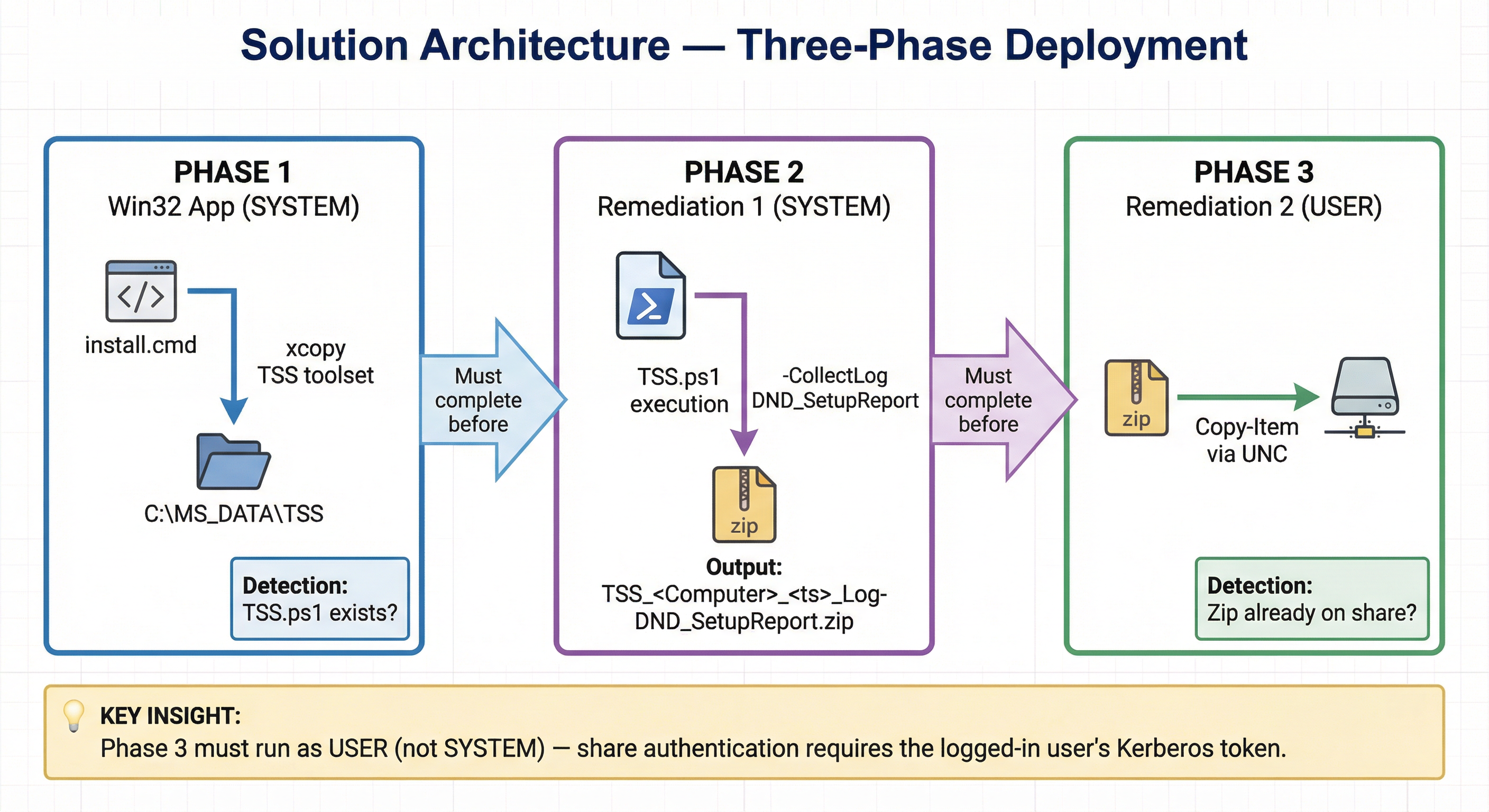
The solution consists of three Intune objects, deployed in order:
| Object | Runs As | Purpose |
|---|---|---|
| Win32 App | SYSTEM | Deploys TSS.ps1 and toolset to C:\MS_DATA\TSS |
| Proactive Remediation 1 | SYSTEM | Runs TSS.ps1 -CollectLog DND_SetupReport, produces the zip |
| Proactive Remediation 2 | USER | Copies the latest zip to the UNC share |
All intermediate files live in C:\MS_DATA — a path TSS uses natively and that SYSTEM has full access to.
Phase 1: Win32 App — Deploy TSS to Endpoints
The Win32 app packages the TSS toolset and installs it to C:\MS_DATA\TSS on every managed device. Detection is simple: does C:\MS_DATA\TSS\TSS.ps1 exist?
install.cmd
@echo off
setlocal

set "MS_DATA=C:\MS_DATA"
set "TSS_ROOT=%MS_DATA%\TSS"
set "SRC=%~dp0"

REM 1) Ensure C:\MS_DATA exists
if not exist "%MS_DATA%" (
    mkdir "%MS_DATA%"
)

REM 2) Check if TSS folder exists in source directory
if not exist "%SRC%TSS" (
    echo TSS folder not found in package source "%SRC%". >&2
    exit /b 1
)

REM 3) Remove existing TSS installation if present (for clean install/update)
if exist "%TSS_ROOT%" (
    echo Removing existing TSS installation...
    rd /s /q "%TSS_ROOT%"
)

REM 4) Copy TSS folder from source to C:\MS_DATA\TSS
echo Copying TSS folder from %SRC%TSS to %TSS_ROOT%...
xcopy "%SRC%TSS" "%TSS_ROOT%" /E /I /Y /Q
if errorlevel 1 (
    echo Failed to copy TSS folder to %TSS_ROOT%. >&2
    exit /b 1
)

REM 5) Verify TSS.ps1 exists after copy
if not exist "%TSS_ROOT%\TSS.ps1" (
    echo TSS.ps1 not found after copy. >&2
    exit /b 1
)

echo TSS installation completed successfully.
exit /b 0
Win32-Detect.ps1
#Requires -Version 5.1
$TSSRoot = 'C:\MS_DATA\TSS'
$TSSPs1  = Join-Path $TSSRoot 'TSS.ps1'

if (Test-Path -LiteralPath $TSSPs1 -PathType Leaf) {
    exit 0   # Installed
} else {
    exit 1   # Not installed
}
Intune Win32 App configuration:
- Install command:
install.cmd - Detection: PowerShell script (
Win32-Detect.ps1) or file rule (C:\MS_DATA\TSS\TSS.ps1exists) - Run as: SYSTEM
- Install behavior: System
Phase 2: Proactive Remediation 1 — Run TSS
This remediation runs TSS as SYSTEM to collect the DND_SetupReport diagnostic package. Because you want to control when this runs (not every 30 minutes), the detection script always returns non-compliant — the schedule on the assignment is your throttle.
TSS-Run-Detection.ps1
#Requires -Version 5.1
# Always non-compliant so remediation runs every time Intune evaluates.
# Control frequency via the assignment schedule (e.g. "Run script every 1 day").

exit 1
TSS-Run-Remediation.ps1
#Requires -Version 5.1
# Runs in SYSTEM context.
# Assumes TSS is already deployed to C:\MS_DATA\TSS via Win32 app.

$MS_DATA  = 'C:\MS_DATA'
$TSSRoot  = Join-Path $MS_DATA 'TSS'
$TSSPs1   = Join-Path $TSSRoot 'TSS.ps1'

if (-not (Test-Path -LiteralPath $TSSPs1 -PathType Leaf)) {
    Write-Error "TSS.ps1 not found at $TSSPs1. Ensure the TSS Win32 app is deployed first."
    exit 1
}

Set-ExecutionPolicy -Scope Process -ExecutionPolicy RemoteSigned -Force

try {
    Push-Location $TSSRoot
    # -noUpdate prevents TSS from prompting for an update and exiting before running the collection
    # -RemoteRun suppresses interactive prompts — required for unattended execution
    & $TSSPs1 -CollectLog DND_SetupReport -AcceptEula -RemoteRun -noUpdate
} finally {
    Pop-Location
}
Key flags:
-AcceptEula— suppresses the EULA dialog that would block unattended execution-RemoteRun— tells TSS it is not running interactively; suppresses prompts-noUpdate— prevents TSS from checking for updates before running (avoids a silent exit when running as SYSTEM without internet access to the TSS update endpoint)
TSS produces its output in C:\MS_DATA\TSS_<ComputerName>_<timestamp>_\ and packages it as:
C:\MS_DATA\TSS_<ComputerName>_<timestamp>_Log-DND_SetupReport.zip
Intune Remediation 1 configuration:
- Run as: SYSTEM
- Run in 64-bit PowerShell: Yes
- Schedule: Daily (or whatever your collection cadence requires)
Phase 3: Proactive Remediation 2 — Copy Zip to Share
This is where the real engineering lives. This remediation runs as the logged-in USER and copies the latest TSS zip to your UNC share using the user's Kerberos-authenticated network credentials.
Why USER Context?
SYSTEM on a domain-joined Windows device has no network identity it can use for UNC share authentication. When SYSTEM tries to access \\server\share, Windows has no Kerberos ticket to present to the file server. The connection attempt falls back or fails outright with Access Denied. No amount of share ACL changes will fix this — it's a fundamental identity constraint.
Running as the logged-in USER means the user's domain credentials and Kerberos tickets are available. As long as the user has Write permission on the share, the copy succeeds.
This is the insight that field experience gives you. Without having seen this failure mode in production, you would spend hours adjusting share permissions before realising the context is wrong.
CopyToShare-Detection.ps1
#Requires -Version 5.1
# Runs in USER context.
# Non-compliant when: share is reachable AND a TSS report zip exists that is not yet on the share.
# Compliant when: share not reachable OR no zip found OR zip already on share and up to date.

$SharePath      = '\\corp.contoso.com\Logs\TSS'
$MS_DATA        = 'C:\MS_DATA'
$ComputerName   = $env:COMPUTERNAME
$ZipNameSuffix  = '_Log-DND_SetupReport.zip'
$ZipNamePattern = "TSS_${ComputerName}_*${ZipNameSuffix}"

# Check share reachability
$shareReachable = $false
try {
    $shareReachable = Test-Path -LiteralPath $SharePath -PathType Container -ErrorAction Stop
} catch {
    $shareReachable = $false
}

if (-not $shareReachable) {
    exit 0   # Share not reachable - compliant (can't copy anyway)
}

# Find TSS report zip(s) on this device
$zips = Get-ChildItem -LiteralPath $MS_DATA -Recurse -File -ErrorAction SilentlyContinue |
    Where-Object { $_.Name -like $ZipNamePattern }
if (-not $zips) {
    exit 0   # No zip found - compliant (nothing to copy)
}

$latestZip   = $zips | Sort-Object LastWriteTime -Descending | Select-Object -First 1
$destZipPath = Join-Path $SharePath $latestZip.Name

# Check if the zip is already on the share and current
if (Test-Path -LiteralPath $destZipPath -PathType Leaf -ErrorAction SilentlyContinue) {
    $shareZip = Get-Item -LiteralPath $destZipPath -ErrorAction SilentlyContinue
    if ($shareZip -and $shareZip.LastWriteTime -ge $latestZip.LastWriteTime) {
        exit 0   # Already on share and up to date - compliant
    }
}

exit 1   # Zip exists and needs to be copied - non-compliant
CopyToShare-Remediation.ps1
#Requires -Version 5.1
# Runs in USER context to access share with user's domain credentials.
# Finds the latest TSS report zip (TSS_<ComputerName>_*_Log-DND_SetupReport.zip)
# and copies it to the UNC share.
# Logs all activity to C:\MS_DATA\TSS-CopyToShare-Remediation.log.

$SharePath      = '\\corp.contoso.com\Logs\TSS'
$MS_DATA        = 'C:\MS_DATA'
$ComputerName   = $env:COMPUTERNAME
$ZipNameSuffix  = '_Log-DND_SetupReport.zip'
$ZipNamePattern = "TSS_${ComputerName}_*${ZipNameSuffix}"
$LogFile        = Join-Path $MS_DATA 'TSS-CopyToShare-Remediation.log'

function Write-RemediationLog {
    param(
        [string]$Message,
        [ValidateSet('INFO', 'WARN', 'ERROR', 'SUCCESS')]
        [string]$Level = 'INFO'
    )
    $timestamp = Get-Date -Format 'yyyy-MM-dd HH:mm:ss'
    $line      = "[$timestamp] [$Level] $Message"
    try {
        Add-Content -LiteralPath $LogFile -Value $line -ErrorAction Stop
    } catch {
        Write-Warning "Could not write to log file: $($_.Exception.Message)"
    }
}

# Ensure MS_DATA exists before we try to write the log
if (-not (Test-Path -LiteralPath $MS_DATA -PathType Container -ErrorAction SilentlyContinue)) {
    try { New-Item -Path $MS_DATA -ItemType Directory -Force -ErrorAction Stop | Out-Null } catch { }
}

Write-RemediationLog -Level INFO -Message "Remediation started. Computer: $ComputerName | User: $($env:USERNAME) | Share: $SharePath"

# Find latest TSS report zip
Write-RemediationLog -Message "Looking for TSS report zip under $MS_DATA (pattern: $ZipNamePattern)"
$allZips = Get-ChildItem -LiteralPath $MS_DATA -Recurse -File -ErrorAction SilentlyContinue |
    Where-Object { $_.Name -like $ZipNamePattern }

if (-not $allZips) {
    Write-RemediationLog -Level ERROR -Message "No TSS report zip found under $MS_DATA"
    Write-Error "No TSS report zip found under $MS_DATA (pattern: $ZipNamePattern)"
    exit 1
}

$zipCount  = @($allZips).Count
Write-RemediationLog -Message "Found $zipCount matching zip(s). Selecting latest by LastWriteTime."
$latestZip = $allZips | Sort-Object LastWriteTime -Descending | Select-Object -First 1
Write-RemediationLog -Message "Latest zip: $($latestZip.Name) ($($latestZip.FullName))"

# Verify share is reachable
Write-RemediationLog -Message "Verifying share is reachable: $SharePath"
try {
    $shareReachable = Test-Path -LiteralPath $SharePath -PathType Container -ErrorAction Stop
    if (-not $shareReachable) {
        Write-RemediationLog -Level ERROR -Message "Share not found or not accessible: $SharePath"
        Write-Error "Share not found or not accessible: $SharePath"
        exit 1
    }
    Write-RemediationLog -Message "Share is reachable."
} catch {
    Write-RemediationLog -Level ERROR -Message "Cannot access share: $($_.Exception.Message)"
    Write-Error "Cannot access share $SharePath : $($_.Exception.Message)"
    exit 1
}

$destZipPath = Join-Path $SharePath $latestZip.Name
Write-RemediationLog -Message "Destination: $destZipPath"

try {
    Write-RemediationLog -Message "Copying zip: $($latestZip.FullName) -> $destZipPath"
    Copy-Item -LiteralPath $latestZip.FullName -Destination $destZipPath -Force -ErrorAction Stop

    Write-RemediationLog -Level SUCCESS -Message "Copy completed. File: $($latestZip.Name)"
    Write-Host "Successfully copied TSS report zip to $destZipPath"
    Write-RemediationLog -Message "Remediation finished. Exit code: 0 (Success)"
    exit 0
} catch [System.UnauthorizedAccessException] {
    Write-RemediationLog -Level ERROR -Message "Access denied. User may not have Write permission on $SharePath"
    Write-Error "Access denied to share $SharePath."
    Write-RemediationLog -Message "Remediation finished. Exit code: 1 (Access denied)"
    exit 1
} catch {
    Write-RemediationLog -Level ERROR -Message "Copy failed: $($_.Exception.Message)"
    Write-Error "Copy to share failed: $($_.Exception.Message)"
    Write-RemediationLog -Message "Remediation finished. Exit code: 1 (Copy failed)"
    exit 1
}
Intune Remediation 2 configuration:
- Run as: USER (not SYSTEM — this is critical)
- Run in 64-bit PowerShell: Yes
- Schedule: Hourly or every few hours (runs fast, low impact)
Troubleshooting with the Log File
Every run of the copy remediation writes to C:\MS_DATA\TSS-CopyToShare-Remediation.log. This file persists between runs and appends — you get a full history of every attempt.
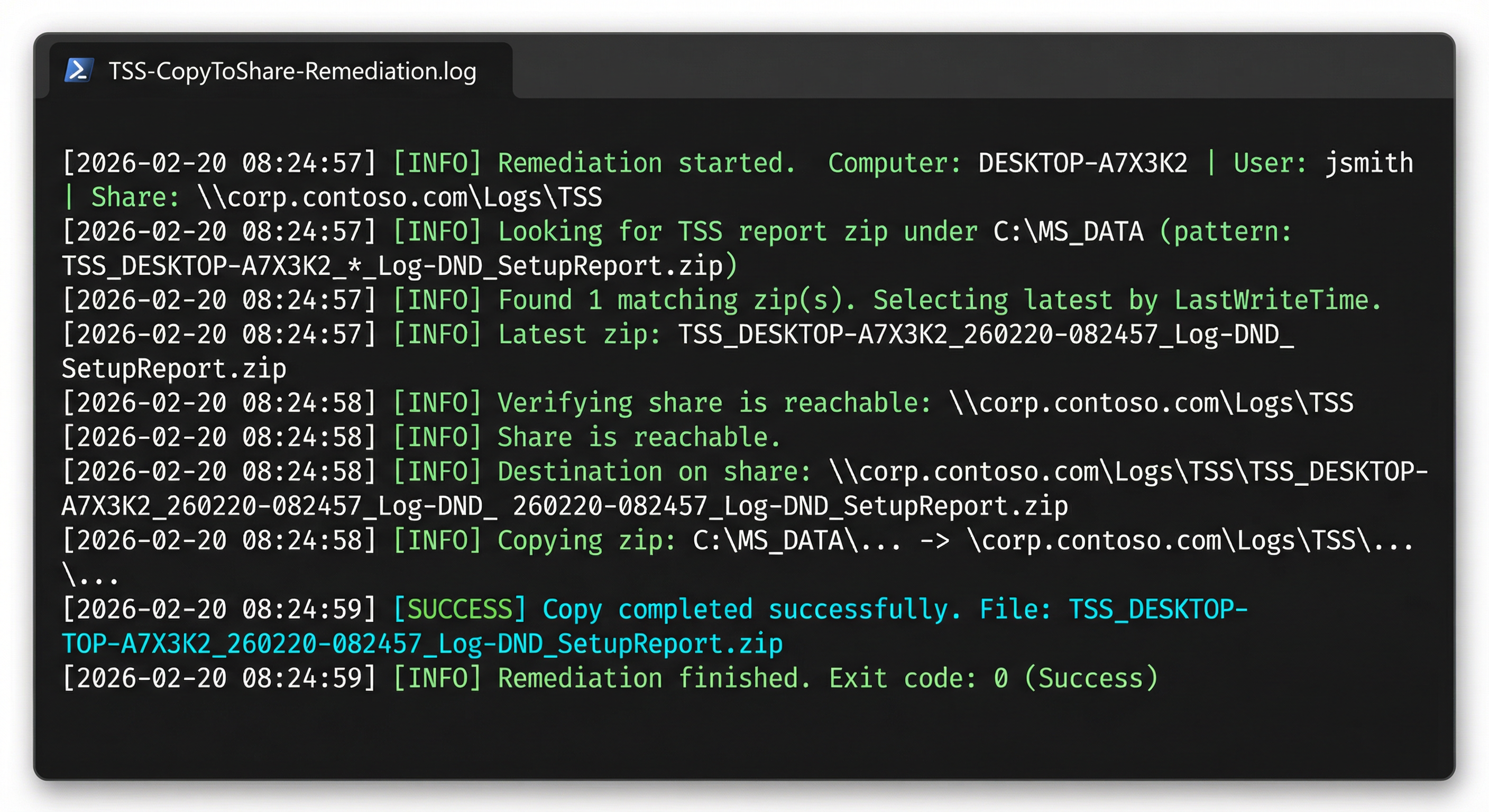
Common failure patterns and what they mean:
| Log Entry | Root Cause |
|---|---|
[ERROR] No TSS report zip found | Phase 2 remediation hasn't run yet, or TSS failed to produce output |
[ERROR] Share not found or not accessible | User not on VPN, or share path is wrong |
[ERROR] Access denied | User doesn't have Write permission on the share, or SYSTEM context was used instead of USER |
[ERROR] Copy failed: ... | Network interruption during copy, or share is read-only |
To retrieve the log file remotely, use Intune's Collect diagnostics feature or pull it via a separate script deployment.
The Critical Insight: SYSTEM vs USER Context
This is worth emphasising because it is the most non-obvious part of the design and the most common mistake.
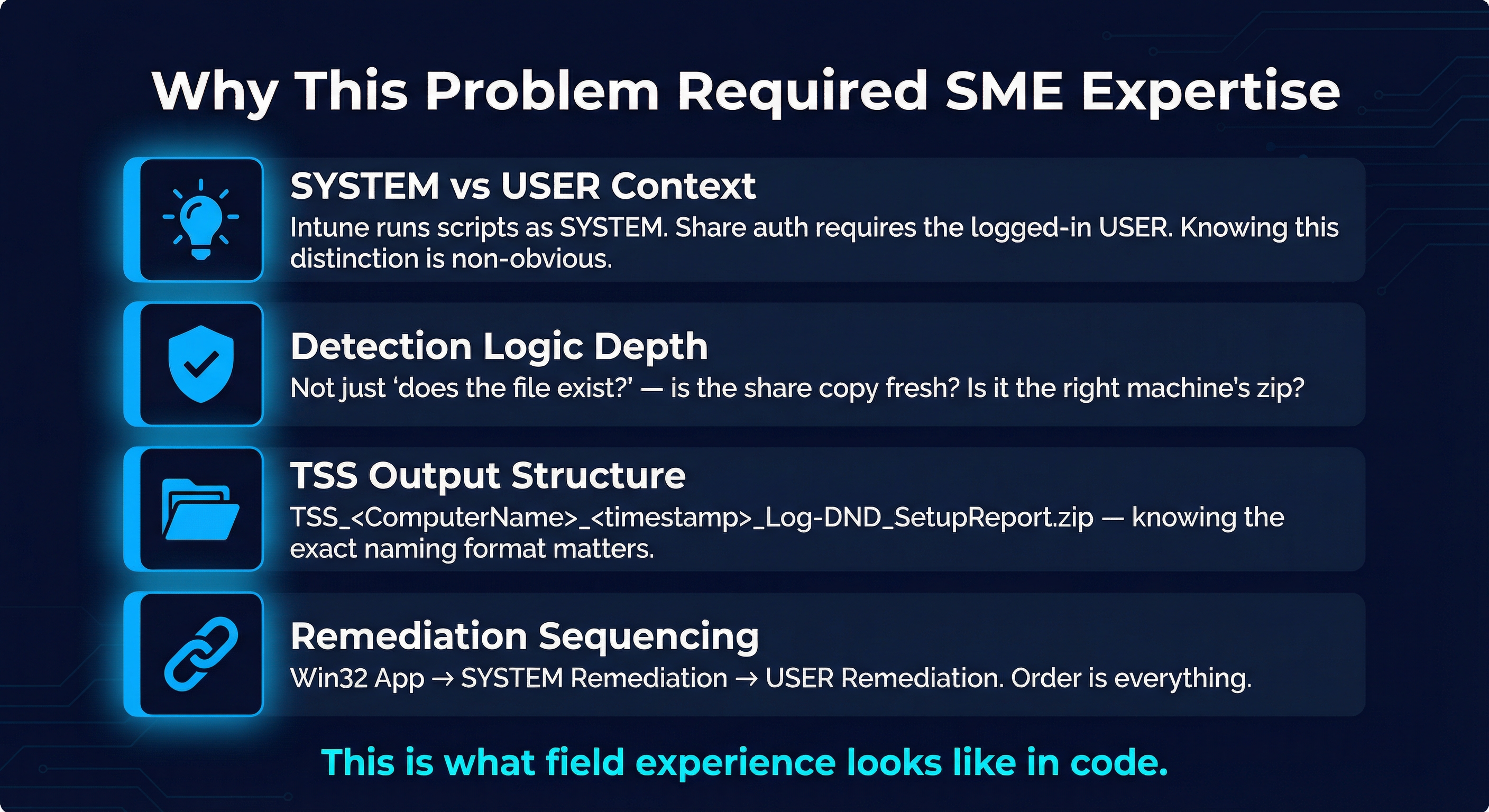
When you set a Proactive Remediation to run as SYSTEM and try to access a domain UNC share, you will see one of these:
Test-Path : Access to the path '\\server\share' is denied.
or the path simply returns $false from Test-Path with no error at all (even more confusing).
The fix is not in the share permissions. The fix is to change the remediation context to USER. Every experienced endpoint engineer has hit this. If you haven't — now you know.
The corollary: because Remediation 2 runs as USER, the user must be logged in when it runs. If the device is unattended (e.g. at the lock screen with no active session), the USER context remediation will not execute. Design your collection workflow accordingly — trigger it during business hours, or after a user-interactive remediation that confirms the session is active.
A Note on Zscaler and Zero Trust Network Access
If your organisation uses Zscaler Private Access (ZPA) for Zero Trust remote connectivity, this entire architecture becomes significantly more elegant — and the share-reachability problem mostly solves itself.
Without ZPA, the USER context remediation depends on the device being connected to the corporate network, either physically or via a traditional VPN tunnel. If the user hasn't launched their VPN client, Test-Path -LiteralPath $SharePath returns $false, the detection exits 0 (compliant), and no copy happens. You have to build your schedule around "assume the user is on VPN."
With ZPA, the user's tunnel is established at the machine level via the Zscaler Client Connector, before user logon, using a machine certificate for authentication (the "machine pre-logon tunnel" or "App Connector" model). By the time the user is logged in and Intune evaluates the USER context remediation, ZPA has already brokered a secure mTLS tunnel from the endpoint to the App Connector sitting in front of your on-premises file server. The SMB session to \\corp.contoso.com\IT\Shared\Transfer traverses this tunnel transparently — no VPN client to launch, no split tunnelling to configure for the share path.
Concretely, what this means for the remediation scripts:
Test-Path -LiteralPath $SharePathresolves reliably because the ZPA App Connector handles DNS resolution for the private domain via ZPA's Private DNS — the endpoint queries Zscaler, which forwards to your internal DNS resolver through the tunnel. No manual hosts file entries, no DNS suffix tricks.- Kerberos authentication for the SMB session still works. The user's TGT is obtained from the domain controller via the ZPA tunnel (assuming your DC is also reachable through an App Connector policy). The file server receives a valid Kerberos service ticket — from its perspective, the connection is indistinguishable from an on-prem session.
- The share-unreachable detection branch (
exit 0when share not reachable) becomes a genuine fallback rather than the dominant code path for remote workers. Intune MDM communication itself flows through Zscaler Internet Access (ZIA) — so even the policy evaluation and remediation trigger are reliable regardless of network location.
The net result: a device enrolled in Intune, protected by Zscaler, running this remediation pipeline will reliably collect and deliver TSS diagnostic logs whether the user is in the office, at home, or in an airport — with no change to the scripts and no dependency on the user manually connecting a VPN.
ZPA App Connector placement: for this to work, you need an App Connector deployed on the same network segment as your file server, with an Application Segment policy that covers the file server's FQDN on TCP 445 (SMB). Private DNS resolution for your internal domain must be configured in the ZPA portal. If you're using Kerberos-authenticated shares specifically, the DC must also be reachable via ZPA or a connector on the domain network.
Detection Logic Deep Dive
The detection script for Remediation 2 deserves its own explanation because it's doing real work:
# Find all matching zips on the local device
$zips = Get-ChildItem -LiteralPath $MS_DATA -Recurse -File -ErrorAction SilentlyContinue |
    Where-Object { $_.Name -like $ZipNamePattern }

$latestZip   = $zips | Sort-Object LastWriteTime -Descending | Select-Object -First 1
$destZipPath = Join-Path $SharePath $latestZip.Name

if (Test-Path -LiteralPath $destZipPath -PathType Leaf -ErrorAction SilentlyContinue) {
    $shareZip = Get-Item -LiteralPath $destZipPath -ErrorAction SilentlyContinue
    if ($shareZip -and $shareZip.LastWriteTime -ge $latestZip.LastWriteTime) {
        exit 0   # Already on share and up to date
    }
}

exit 1   # Needs copying
Why -Recurse? TSS can place the zip inside a timestamped subfolder (C:\MS_DATA\TSS_<Computer>_<ts>_\) or directly in C:\MS_DATA. Searching recursively handles both cases without assumptions about TSS's exact output structure.
Why LastWriteTime comparison? LastWriteTime on the share copy reflects when it was last written to. If the local zip is newer than what's on the share (e.g. TSS ran again), the detection correctly flags non-compliant and triggers a fresh copy.
Why not check file size or hash? File size comparison is fragile across SMB — rounding and metadata differences can cause false positives. Hash comparison on a large zip file over a WAN link in a detection script is too slow. LastWriteTime is the right balance of accuracy and performance for this use case.
File Naming Convention
Understanding the TSS output naming is important for adapting this to other collection types:
TSS_<ComputerName>_<timestamp>_Log-<CollectionName>.zip
For DND_SetupReport:
TSS_DESKTOP-A7X3K2_260220-082457_Log-DND_SetupReport.zip
<ComputerName>—$env:COMPUTERNAME, always dynamic<timestamp>— formatYYMMDD-HHmmss, set by TSS at collection timeLog-DND_SetupReport— fixed suffix for this collection type
The scripts use the pattern TSS_${ComputerName}_*_Log-DND_SetupReport.zip. If you adapt this for a different TSS collection (e.g. WUfBReport), change $ZipNameSuffix in both scripts.
Deployment Checklist
Before deploying to production:
- TSS toolset packaged in Win32
.intunewinformat - Win32 app assigned to target device group
- Wait for Win32 app to show as Installed in Intune reporting before enabling Remediation 1
- Remediation 1 (
TSS-Run-*) assigned with appropriate schedule — SYSTEM context - UNC share created with correct permissions: user accounts (or a group containing them) have Modify on both share and NTFS permissions
- Remediation 2 (
CopyToShare-*) assigned — USER context, hourly schedule - Update
$SharePathin both CopyToShare scripts to your actual share path - Verify
C:\MS_DATA\TSS-CopyToShare-Remediation.logappears on a test device after first run
What the Workflow Looks Like End-to-End
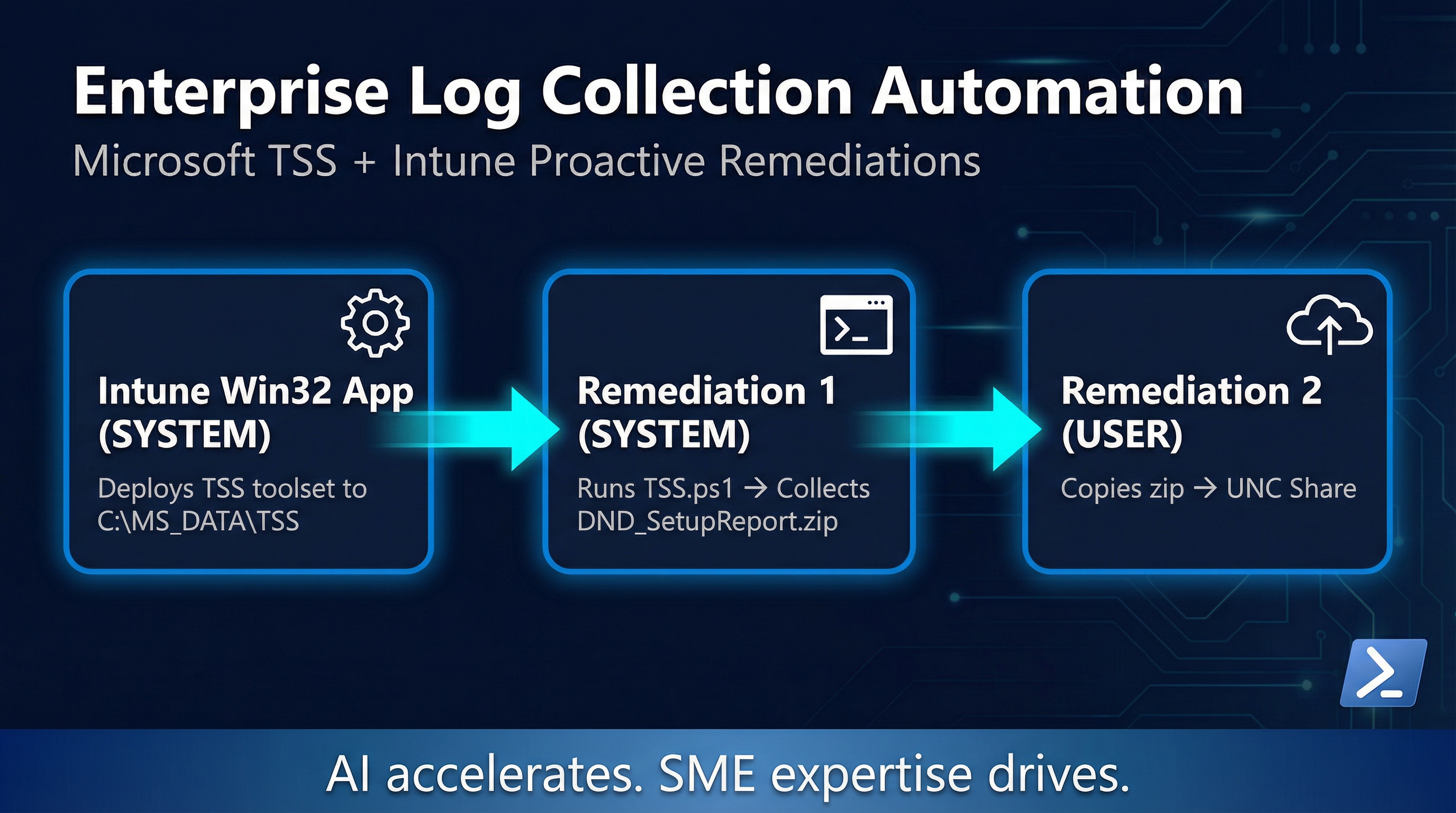
- Intune detects Win32 app is not installed → pushes
install.cmdas SYSTEM → TSS toolset lands atC:\MS_DATA\TSS - Intune evaluates Remediation 1 → detection always returns exit 1 → remediation runs as SYSTEM →
TSS.ps1 -CollectLog DND_SetupReportexecutes → zip created atC:\MS_DATA\TSS_<Computer>_<ts>_Log-DND_SetupReport.zip - Intune evaluates Remediation 2 → detection runs as USER → finds zip, checks share → zip not on share → exits 1 (non-compliant) → remediation runs as USER →
Copy-Itemcopies zip to share → log entry written → exits 0 - Next evaluation cycle → detection finds zip on share with matching
LastWriteTime→ exits 0 (compliant) → remediation does not re-run
Total elapsed time from "TSS deployed" to "zip on share": typically under 5 minutes on a good network connection.
Closing Thoughts
This solution looks simple in retrospect — a few PowerShell scripts and some Intune configuration. But the decisions embedded in it are only obvious if you've spent real time in the weeds of Intune context behaviour, UNC authentication, and TSS output structure.

The lesson I keep coming back to after builds like this: AI tooling dramatically accelerates the scripting and documentation cycle — you spend less time on syntax and more time on architecture. But the decisions themselves — SYSTEM vs USER, detection logic design, sequencing across deployment object types — those come from field experience. There is no prompt that produces good architecture. There is only understanding the problem deeply enough to recognise the right answer when you see it.
If you're building something similar, feel free to adapt these scripts for your environment. Change $SharePath, adjust the TSS collection name in $ZipNameSuffix, and tune the remediation schedules to your collection cadence.
Scripts Reference
All scripts referenced in this post are available on GitHub: CYEBRSYSTEM-AliAlame/Powershell-Scripts
| File | Purpose | Context |
|---|---|---|
install.cmd | Deploys TSS toolset to C:\MS_DATA\TSS | Win32 App install (SYSTEM) |
Win32-Detect.ps1 | Detects if TSS.ps1 exists | Win32 App detection (SYSTEM) |
TSS-Run-Detection.ps1 | Always non-compliant (triggers TSS run) | Remediation 1 detection (SYSTEM) |
TSS-Run-Remediation.ps1 | Executes TSS.ps1 -CollectLog DND_SetupReport | Remediation 1 remediation (SYSTEM) |
CopyToShare-Detection.ps1 | Checks if zip is already on share | Remediation 2 detection (USER) |
CopyToShare-Remediation.ps1 | Copies zip to UNC share, with logging | Remediation 2 remediation (USER) |